▶ YouTube Video MP3 Converter
Convert any YouTube video to MP3 free — no signup, no software. Learn safe bitrate settings, avoid scam converters, and fix common conversion errors.
Paste a YouTube video link, pick MP3, hit convert — that’s the whole process. No account, no software to install, no waiting around for a desktop app to finish updating itself before you can use it. Whether you’re grabbing a podcast episode to listen to offline on the train or saving a lecture recording before it gets taken down, a YouTube video MP3 converter turns that link into an audio file you can keep.
That said, this space is genuinely messy. A lot of “free converters” bury you in redirect ads or try to sneak a browser extension onto your machine. So, alongside the tool itself, this guide covers the stuff most converter sites skip: which bitrate actually matters, how to spot a sketchy site before you click anything, and what to do when a conversion just won’t go through.
How to Convert a YouTube Video to MP3
Here’s the actual process, start to finish:
- Grab the link. Open the video on YouTube and copy the URL from your browser’s address bar, or tap Share on mobile and copy the link from there.
- Paste it into the converter. The tool above accepts pretty much any YouTube link format — a standard youtube.com/watch= link, a shortened youtu.be/ link, and even Shorts URLs work the same way.
- Pick your format and quality. Choose MP3, then select a bit rate (more on why these matters in a second).
- Convert and download. Processing usually takes a few seconds for a typical song-length video; longer files take proportionally longer.
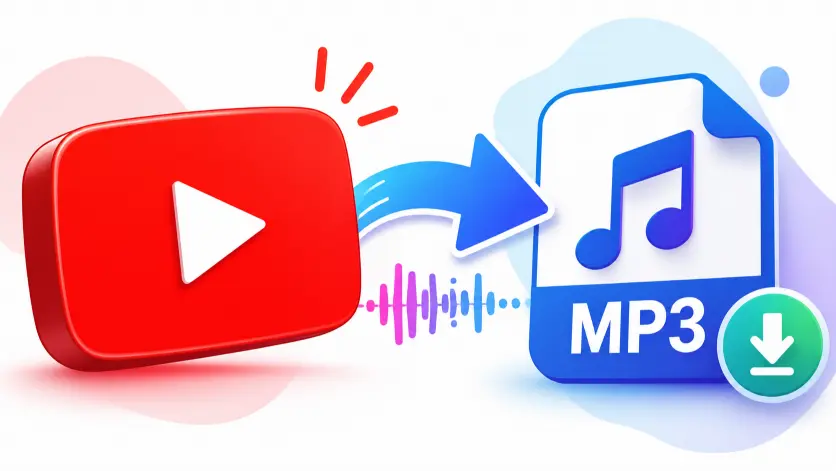
That’s it. No login screen trying to upsell you, no email capture before you’re “allowed” to download.
One thing worth knowing upfront: most converters (this one included) cap the video length you can convert — commonly somewhere around 1–3 hours. If you’re trying to convert a 4-hour lecture recording, split it or trim it on YouTube first, because you’ll hit that ceiling.
Is Converting YouTube to MP3 Legal?
This is the question people actually want answered, and most converter sites either dodge it completely or wave it away with a single vague sentence. So, here’s the honest version.
There are really three separate things tangled together: YouTube’s Terms of Service, copyright law, and what’s realistically enforced.
YouTube’s Terms of Service
YouTube’s Terms of Service technically prohibit downloading content unless YouTube itself provides a download button (like YouTube Premium’s offline feature) or the uploader has explicitly enabled it. That’s a contract between you and YouTube, not a criminal law — breaking it means YouTube could restrict your access to their service, not that you’ve committed a crime.
Copyright law YouTube Video MP3 Converter
Copyright law is separate and matters more. If a video is your own content, is in the public domain, or is licensed under Creative Commons (a lot of royalty-free music channels use this), converting it to MP3 for personal use is genuinely fine. If it’s a copyrighted song from a major label uploaded by someone else, downloading it for personal offline listening sits in a legal gray zone in most countries — rarely prosecuted for individuals, but not something rights holders consider “fine.”
What’s actually been enforced
What’s actually been enforced tells you where the real risk sits — and it’s aimed at the converter services, not individual users. In 2017, the RIAA won a lawsuit against YouTube-mp3.org that effectively shut the site down. In 2018, Flvto.biz — worth noting, since the site now ranking as “Flvto” is a rebrand under a new domain (flvto.world) after the original was hit with a similar RIAA suit — had its domain seized by U.S. courts. Germany’s music rights organization GEMA has pursued similar cases against stream-ripping tools in the EU.
The practical takeaway: converting your own content, Creative Commons tracks, or podcasts/lectures the creator wants shared is low-risk personal use. Downloading copyrighted music to redistribute or build a public library is where the actual legal exposure lives, and that’s true regardless of which converter you use.
Is It Safe? How to Spot a Malicious Converter
This is the part most converter sites won’t tell you, for an obvious reason — a lot of them are the problem.
Here’s what to actually watch for:
- The “Download” button that isn’t. A common trick is surrounding the real download link with 2–3 fake buttons that are actually ads. If a page has multiple green “Download Now” buttons and only one of them does what you expect, that’s not an accident.
- Forced extension or app installs. A legitimate converter processes your file server-side or in-browser. If a site tells you to “install our extension to continue” or “download our app to finish converting,” close the tab. This is the single most common way these sites push adware.
- Redirect chains. You click Convert and suddenly you’re on a totally unrelated page — a fake “your driver is out of date” warning, a survey, a sweepstakes. One redirect to a new tab for an ad is annoying but common; being bounced through 3–4 different domains before you see a download link is a red flag that something on that chain is trying to plant something on your device.
- No HTTPS. If the address bar doesn’t show a padlock, don’t paste anything into that site, full stop.
- None of this means every free converter is dangerous — most aren’t. But “we’re 100% safe” written on the homepage means nothing on its own. What actually indicates safety is what happens (or doesn’t happen) after you click Convert: no install prompts, no more than one legitimate download button, no bouncing through unrelated pages.
Which Audio Quality (Bitrate) Should You Choose?
Bitrate is measured in kbps (kilobits per second), and it controls both file size and audio detail. Here’s the practical breakdown:
| Bitrate | File size (4-min song) | Best for |
| 128 kbps | ~3.7 MB | Podcasts, spoken word, casual listening |
| 192 kbps | ~5.5 MB | Everyday music listening |
| 256 kbps | ~7.4 MB | Music on decent headphones/speakers |
| 320 kbps | ~9.2 MB | Music where you actually notice audio detail |
Here’s the part almost every converter site leaves out: selecting 320kbps doesn’t create quality that wasn’t already there. YouTube compresses its audio using Opus or AAC at the point of upload, typically somewhere in the 128–160 kbps effective range for most videos. When a converter “extracts” audio at 320kbps, it’s re-encoding that already-compressed source into a larger MP3 file — not recovering lost detail. Think of it like resizing a low-res photo to a bigger canvas: the file gets bigger, but you don’t get more actual image detail.
That doesn’t mean bitrate choice is pointless — encoding at a higher bitrate does avoid adding further compression artifacts on top of what YouTube already applied, so 256–320kbps is still the safer choice for music you care about. But if a site is marketing “true 320kbps studio quality,” take that with a grain of salt: you’re getting a clean transcode of YouTube’s source audio, not master-tape fidelity.
For spoken content like podcasts or lectures, this barely matters — 128kbps is genuinely fine and keeps files small.
Converting Playlists and Multiple Videos
Most YouTube to MP3 converters — including several of the most popular ones — only handle one video at a time. If you’re trying to convert an entire album uploaded as a playlist, that’s a real limitation worth knowing about before you start.
A few realistic workarounds:
- Convert individually. Tedious for a 20-track playlist, but reliable, and it’s what most people end up doing anyway.
- Browser extensions that queue links. Some extensions let you paste multiple URLs and process them in sequence rather than one at a time manually.
- Command-line tools for technical users. Tools like
yt-dlpsupport playlist downloads and audio extraction directly, though this requires comfort with a terminal and isn’t something most people need to touch.
If you’re converting a handful of tracks, individual conversion is genuinely the path of least friction. Save the batch tools for when you’re doing this regularly.
Adding Song Titles, Artist Names, and Cover Art (ID3 Tags)
Here’s something almost nobody mentions: the MP3 file you download from a converter usually inherits the video’s title as the filename — something like Artist - Song Name (Official Video) [HD].mp3 — and typically has no embedded artist tag, album name, or cover art at all.
If you’re just listening to one file on your phone, this doesn’t matter. If you’re building an actual music library, it will drive you a little crazy watching your music app display “Song Name Official Video HD” instead of the artist and title in separate fields.
The fix is a free tag editor:
- Mp3tag (Windows/Mac) — lets you batch-edit titles, artists, and albums, and can auto-fill metadata by matching against online databases.
- MusicBrainz Picard — similar idea, using acoustic fingerprinting to identify tracks even when the filename is a mess, and it can pull in cover art automatically.
Five minutes with either tool turns a folder of oddly-named MP3s into a properly tagged library. Worth doing if you’re keeping more than a couple of files.
Common Conversion Errors and Fixes
A few issues come up often enough that they’re worth addressing directly instead of leaving you to guess:
- “Video unavailable” or conversion won’t start. Usually means the video is age-restricted, private, unlisted, or region-locked in your country. Converters can only access what a regular browser can access — if you can’t watch it without logging in, the converter can’t grab it either.
- Conversion gets stuck or times out. Most common with livestream VODs (which can run for hours) or very long videos near the site’s length limit. Try trimming the URL to a shorter clip, or check if the site has a stated maximum length you’re bumping against.
- The downloaded file is silent or corrupted. Rare, but usually caused by an interrupted download rather than the conversion itself. Re-downloading the same file (rather than reconverting from scratch) often fixes it.
- Shorts or unusual URL formats aren’t recognized. Some older converter tools were built before Shorts existed and don’t parse that URL structure correctly. If a Shorts link fails, try opening it in a normal browser tab first — sometimes the URL that loads is a different format than what’s in the address bar on mobile.
Legal Alternatives to Downloading YouTube Audio
Worth mentioning honestly: if what you actually want is offline access rather than a permanent MP3 file, there are legitimate paths that don’t sit in any legal gray area.
- YouTube Music or YouTube Premium let you download videos and playlists directly within the app for offline playback — no converter needed, fully sanctioned.
- Buying the track from Bandcamp, iTunes, or the artist directly gets you a real, properly tagged file and actually pays the creator.
- Royalty-free and Creative Commons libraries (Free Music Archive, YouTube’s own Audio Library) are built specifically for downloading and reuse, no gray area involved.
None of this is a lecture — plenty of use cases for a converter are entirely reasonable, especially for your own content, CC-licensed tracks, or educational material. But if the goal is just “music on my phone without data usage,” an official offline download is often less hassle than it seems.
Best YouTube to MP3 Converters Compared
A quick, honest look at how the popular options stack up:
| Tool | Max length | Bitrate options | Ads | Playlist support |
| This converter | ~3 hours | 128–320kbps | Minimal | No |
| Flvto | Not specified | 128/192/320kbps | Minimal | No |
| CnvMP3 | ~3 hours | 96–320kbps | Ad-free (donation-supported) | No |
| YTMP3-style sites | Varies, often 240 min for MP3 | 192kbps fixed | Often heavier ad load | No |
The honest pattern across nearly every tool in this space: none currently support playlist conversion, and stated length limits vary more than the marketing copy usually admits. If a specific feature matters most to you — no ads, high length limits, playlist support — that’s the actual differentiator to check before picking a tool, not the vague “best converter” claims most of these sites lead with.